

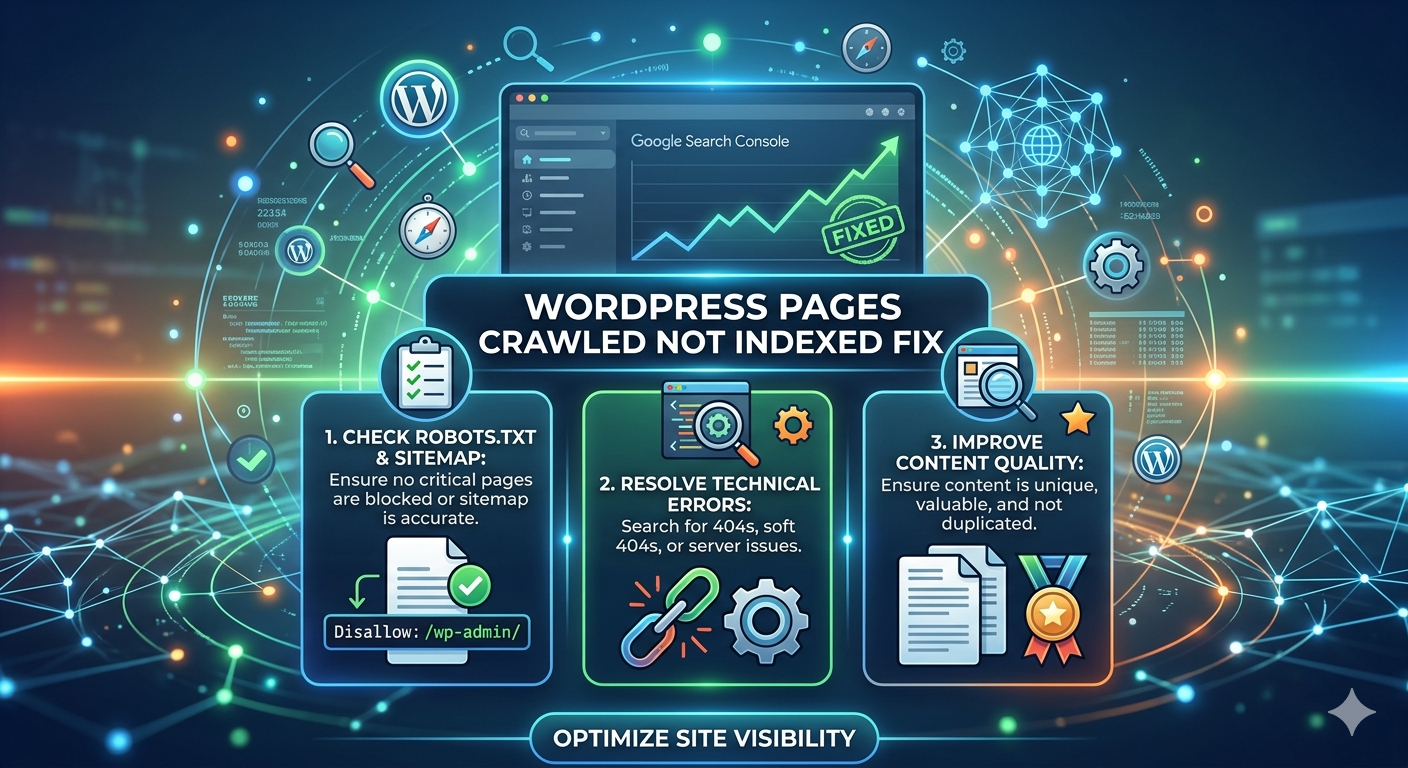
WordPress Pages Crawled Not Indexed Fix It is an incredibly frustrating scenario for any website owner. You log into Google Search Console, eager to check your site’s performance, only to find a massive list of URLs sitting under the status “Crawled – currently not indexed.”
This notification means that Googlebot successfully visited your WordPress site, opened your pages, read through your content, and then decided to leave them out of the search results registry. The technical plumbing for discovery is working perfectly, but your content is effectively invisible to the public.
Fortunately, this is a common issue with highly logical solutions. To fix this state, you need to systematically diagnose whether the issue stems from an unintentional technical blocker, structural confusion, or a perceived lack of content depth. Let’s break down exactly how to diagnose and implement a wordpress pages crawled not indexed fix to ensure your hard work actually gets found.
📊 Quick Facts: Indexing Diagnostics at a Glance
| Indexing Status | Core Definition | Primary Root Cause | Most Effective Fix |
| Crawled – currently not indexed | Google successfully visited the URL but chose not to save it to its searchable database. | Thin content, missing internal links, or duplicate canonical tags. | Enhance content quality, build internal anchors, and check plugin configurations. |
| Discovered – currently not indexed | Google knows the URL exists but hasn’t allocated the crawl resources to visit it yet. | Server performance limitations or crawl budget restrictions. | Optimize server response times and clean up low-value site links. |
| Excluded by ‘noindex’ tag | A hidden code snippet explicitly tells search engines to ignore the page. | Unchecked global settings or local page-level SEO overrides. | Disable the global search visibility blocker in your WordPress dashboard. |
🔍 Step 1: Eliminate Technical Blockers and Hidden Tags
The first step in any wordpress pages crawled not indexed fix is ensuring that your site isn’t sending mixed signals to search engines. Many times, a page ends up in the “crawled” state because Googlebot attempted to read it but bumped into a hidden technical directive that conflicted with normal indexing behaviors.
Start by checking your core site configuration inside your WordPress admin dashboard. Navigate to Settings > Reading and scroll down to the bottom of the page. You will find an option labeled “Search engine visibility” with a checkbox to “Discourage search engines from indexing this site.” If this box was checked during development and never turned off, it inserts a site-wide blocker that keeps your pages out of search results. Unchecking this box and saving changes is the easiest technical fix you can perform.
HTML
<!– Example of a destructive tag to look for in your source code –>
<meta name=”robots” content=”noindex, nofollow” />
If the global setting is fine, the issue could be isolated to specific URLs. Open an affected page, right-click, and select “View Page Source.” Use the find function (Ctrl + F) to search for the word noindex. If you find a meta tag containing this directive, your SEO plugin (such as Rank Math, Yoast, or AIOSEO) is actively telling Google to ignore the page. You will need to edit that specific post or page, scroll down to the advanced advanced meta settings of your SEO plugin, and manually switch the robots setting from “No Index” to “Index.”
🔗 Step 2: Fix Canonical Messes and URL Redirection Chains
Google heavily despises duplication. If your WordPress site features multiple URLs displaying nearly identical content, Google will choose one primary version to index and drop the remaining URLs into the “Crawled – currently not indexed” bucket. This is where audit management of your canonical tags becomes incredibly vital to your SEO health.
A canonical tag tells search engines exactly which version of a URL is the definitive master copy. If you push a site from a staging environment to a live server, or if your theme automatically generates weird parameter URLs (like ?p=123), the canonical tags might point to an incorrect or non-existent page. Use the URL Inspection Tool inside Google Search Console to see what Google identifies as the “User-declared canonical” versus the “Google-selected canonical.” If they don’t match, you must fix the canonical configuration within your SEO plugin’s metadata box on that specific page.
Staging URL (Old) ❌ —> https://staging.yoursite.com/my-page/
Live URL Target ✅ —> https://yoursite.com/my-page/
Additionally, look out for messy redirect chains. If a crawled page forces Googlebot to pass through multiple 301 or 302 redirects before arriving at a destination, the bot may terminate the indexing cycle out of caution. Ensure that all internal hyperlinks point directly to the final, live HTTPS version of the target URL rather than forcing the server to process unnecessary routing hops.
📈 Step 3: Upgrade Content Quality and Clear the Value Threshold
If you have verified that no technical blocks or canonical errors exist, your wordpress pages crawled not indexed fix transitions into a content optimization problem. Modern search algorithms utilize a strict quality evaluation filter. If Google crawls a page and determines it offers thin value, aggregates scraped data, or fails to answer search intent better than existing resources, it deliberately excludes the URL to protect its search index quality.
Fixing this requires an honest audit of your page’s text layout. “Thin content” doesn’t just mean a low word count; it means a lack of original utility. To cross Google’s indexation threshold, expand your pages with unique insights, structured data, bulleted lists, and comprehensive explanations. Avoid generic AI-generated walls of text that repeat surface-level information found on hundreds of other sites. Add media assets, clear headings, and real-world examples that definitively answer user queries.
Furthermore, beware of intentional or unintentional internal keyword cannibalization. If you publish five different blog posts covering the exact same topic with minor phrase variations, Google may decide that only one post is worthy of indexing. Consolidate your weaker, unindexed pages into a single, comprehensive pillar piece of content. This reduces index bloat, maximizes your crawl budget efficiency, and makes it incredibly easy for search bots to recognize the definitive value of your page.
🕸️ Step 4: Revamp Internal Linking Structure and Sitemap Routing
Googlebot navigates the web primarily by following links. If an important page is buried deep within your site’s structural architecture without any internal contextual links pointing to it, Google views it as an isolated “orphan page.” Even if it discovers the page via your XML sitemap, it might deem the page unimportant to your site’s overall topic structure and leave it unindexed.
To execute an effective internal link fix, find your highest-authority pages—such as your homepage or top-performing blog posts—and add contextual anchor text links pointing directly to the unindexed URLs. This distributes internal link equity throughout your site architecture, signaling to Google that the crawled page is a vital component of your content ecosystem.
[ High Authority Page 📄 ] — Contextual Link —> [ Unindexed Page 📄 ] = Indexation! 🎉
Simultaneously, check your automated XML sitemap configuration. Ensure your SEO plugin is actively injecting your live pages into the sitemap feed and that you have submitted the correct sitemap URL path inside Google Search Console. If Google discovers a page but notes that it is missing from your formal sitemap index, it may lower the priority of that page, delaying or completely halting its inclusion in the public search results index.
🚀 Step 5: Force Re-Indexing via Google Search Console
Once you have successfully resolved the technical errors, fixed canonical mismatches, enhanced the content depth, and built internal link bridges, it is time to alert Google to review your updates. Google will eventually re-crawl your site naturally, but you can speed up the process significantly by manual intervention.
Open your Google Search Console dashboard and paste the problematic URL into the top search bar labeled “Inspect any URL.” Once the current status report loads, click the “Test Live URL” button in the top right corner. This tells Googlebot to fetch the page in real-time, verifying whether your recent fixes—such as removing a rogue noindex tag or updating a canonical link—are active.
If the live test comes back completely green and confirms that the URL is available to Google, click the “Request Indexing” link. This places your specific page into a priority queue for automated processing. While this does not guarantee instantaneous placement, well-optimized pages that pass technical validation are typically moved out of the “Crawled – currently not indexed” category and into the live Google search results within 24 to 48 hours.
❓ Frequently Asked Questions (FAQ)
Why does Google crawl my WordPress pages but refuse to index them?
Google splits its search engine operations into distinct phases: discovery, crawling, and indexing. Crawling simply means Googlebot successfully fetched and downloaded the page’s HTML file. Indexing requires an additional analytical decision. If Google finds technical directives like noindex tags, incorrect canonical references, duplicate copy, or thin content value, it intentionally drops the page into the unindexed pile.
How long does it take for Google to fix the “Crawled – currently not indexed” status?
After you resolve the issues and click “Request Indexing” in Google Search Console, it typically takes anywhere from 24 hours to a week for the URL status to update. If your site has low domain authority or server latency, it may take slightly longer for search bots to cycle back and process the priority queue.
Can a caching plugin cause WordPress pages to stay unindexed?
Yes, aggressive caching settings can cause this issue. If your WordPress site serves an old, cached version of a page to Googlebot that still contains an accidental development noindex tag, Google will continue to exclude the page. Always purge your site-wide cache and CDN storage layer after making technical indexing modifications.
Does a high number of unindexed pages harm my site’s overall SEO?
An occasional unindexed page won’t tank your site’s visibility, but hundreds of URLs stuck in the “Crawled – currently not indexed” status signal to Google that your site contains a high ratio of low-quality or redundant content. Cleaning up these URLs improves your overall crawl budget efficiency and strengthens your domain reputation.
YOU MAY ALSO READ